




How to setup Automation with a Verification Activity in Salesforce Marketing Cloud Engagement
Highlight text, then choose “Suggest an edit”.Your selection is saved in the bottom bar.
Place the Verification Activity after the data you want to check has been prepared. If you select Stop Automation, place it before the activities you want to prevent from running when the condition is met. If you select only Send Email Notification, it can also be the final step, providing an alert based on the results of earlier activities.
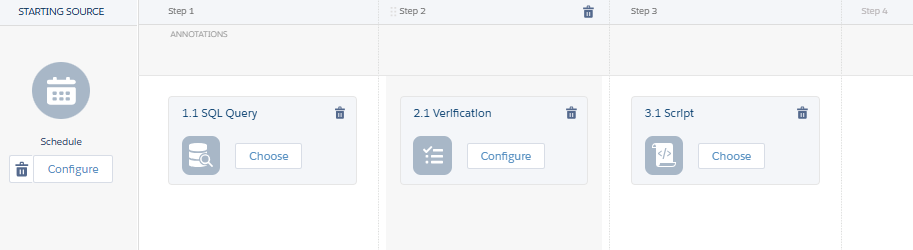
The Verification activity usually checks whether the previous SQL Query activity produced any records. If records are present, the automation continues to the next step, typically a Script activity or another activity that processes those records.
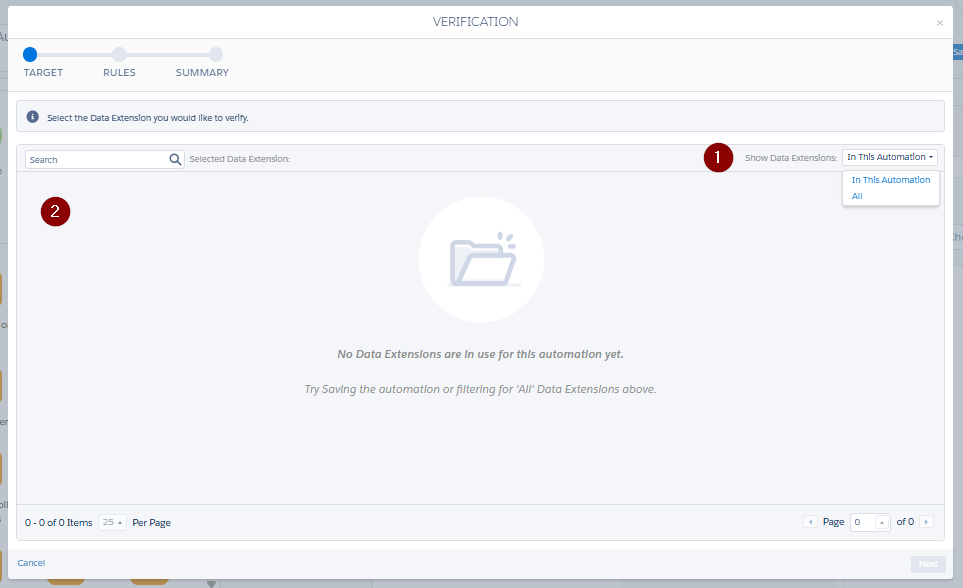
- Select the location of the data extension you want to verify.
- Select extension
- Next
Now that we have selected our data extension, we need to define the condition to check. This can be whether the DE is empty, contains exactly one record, or contains more than zero records. The condition depends on the requirement and triggers the selected action when it is met.
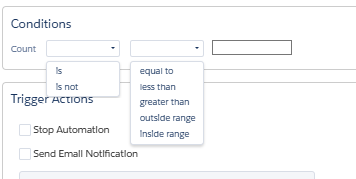
For example, we can use a control DE to determine whether the remaining activities should run. An earlier process refreshes this DE for each run, leaving one record when processing should continue and no records otherwise. We then configure the Verification Activity to stop the automation when Count = 0. This represents a true/false decision through the record count, rather than checking a Boolean field directly.
Another example is a recurring automation that processes new records. Some runs return records, while others return none. We can stop the automation when the DE is empty to prevent the remaining activities from running. Alternatively, if we only want an alert, we can place the Verification Activity at the end and configure it to send an email notification when Count = 0.
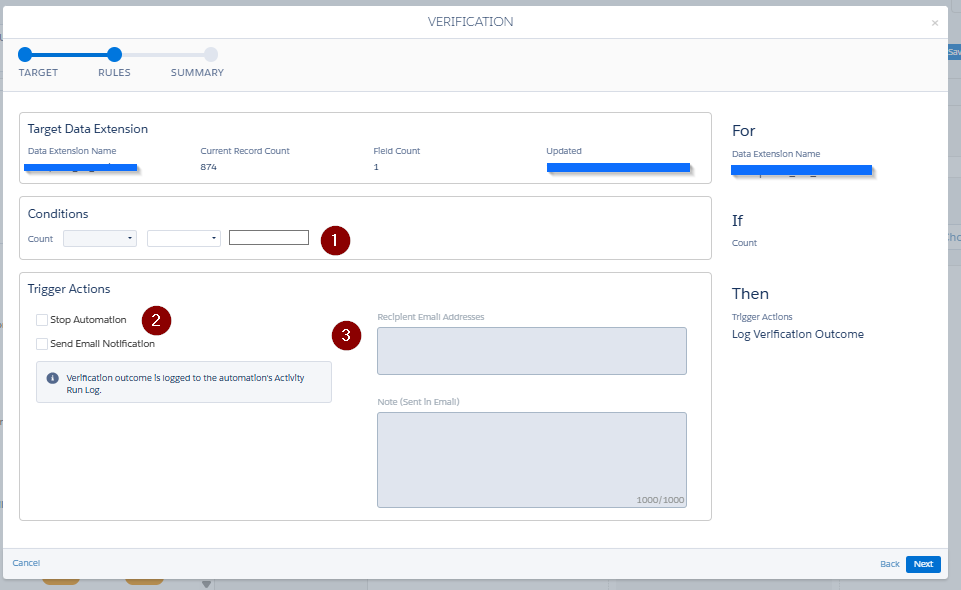
- Add conditions.
- Select an action.
- Select recipients and enter a message, if required.
Put the Verification Activity at the Control Point
Use the Verification Activity as a gate between the activity that prepares data and the activity that consumes it. Its position determines what the failure protects. Activities placed before the verification have already run; activities after it do not run when the verification fails.
Define the Data Condition Before Building the Automation
Do not place the check at the end of an automation if its purpose is to prevent a send, import, extract, or other downstream operation. Put it immediately before the first activity that relies on the data meeting the required condition.
The verification condition should represent a requirement for the next automation step, not a broad health check. Define what must be true for triggering the downstream activity, then configure the Verification Activity to test that condition.
Keep the condition aligned with the data output created earlier in the automation. If the preceding activity changes, review the verification requirement as part of the same change. A check that no longer reflects the output can either stop a valid automation or allow invalid data to proceed.
Design the Automation Around a Failed Check
A Verification Activity stops the automation; it does not provide an alternate branch for recovery work. Put any work that must always happen before the verification, and put only dependent work after it.
This structure is useful when an earlier data-processing step completes but its output does not meet the requirement for the next step. The verification prevents dependent activities from running against data that failed the check.
Review Failed Runs Before Rerunning
Treat a failed verification as a data-quality or process-control failure. Identify the data condition that caused the failure, correct the underlying input or processing issue, and then rerun only after the verification requirement is satisfied.
Avoid weakening the verification merely to allow the automation to complete. The activity is the control that prevents downstream processing after the required data check fails.
Share With Others
 Platinum