




How to Configure the Update Data Activity in Adobe Campaign Classic

Configure the Adobe Campaign Classic Update data activity by selecting an operation, choosing the target dimension, defining how inbound records identify destination records, and mapping source values to destination fields. The activity provides Insert or update, Update, Insert, and Delete operations in its workflow configuration, as described in the Update data activity configuration reference.
What the Update Data Activity Does
The Update data activity writes records to a selected target dimension from the records received through its inbound transition. Prepare the input population before the activity runs.
Keep these roles separate:
- Inbound transition: provides the source records and expressions.
- Target dimension: defines the destination data to modify.
- Reconciliation criteria: identify the destination record for an inbound record.
- Field mappings: define which destination fields receive values.
Update Data Operation Types
Select the operation that matches the intended database action.
| Operation | Behavior |
|---|---|
| Insert or update | Updates matching records and inserts records that do not match. |
| Update | Updates matching records without creating missing records. |
| Insert | Creates records in the target dimension. |
| Delete | Removes records identified by the configured matching rule. |
Do not use Insert or update automatically for every import. Use Update when the workflow must change existing records without creating new ones.
Configuration Requirements
Before configuring the activity, confirm the following:
- The workflow has an inbound transition containing the records to process.
- The selected target dimension is the data structure to modify.
- The inbound data contains values that can identify the intended destination records.
- The source fields required for the operation are present in the inbound transition.
- The selected operation matches the required result.
Use reconciliation criteria that identify the intended destination record unambiguously, and test the rule on representative data. Confirm destination field names and data types in the selected target schema before creating field mappings.
How to Configure the Activity
1. Add and identify the activity
Add Update data to the workflow and connect its inbound transition to the activity. The preceding activity must provide the records to insert, update, or delete.
Use a meaningful activity label so the workflow is easier to maintain.
2. Select the operation
Choose the operation required by the workflow:
- Insert or update for records that must be updated when found and inserted when not found.
- Update for records that already exist in the target dimension.
- Insert for new records.
- Delete for records identified for removal.
3. Select the target dimension
Select the target dimension containing the records to modify. The target dimension controls the destination fields available in the activity.
If an expected destination field is unavailable, verify that the correct target dimension is selected and that the field exists in that target schema.
4. Define the matching rule
Configure the reconciliation criteria to match an inbound value with the corresponding destination value. For example, an instance-specific external customer ID from the inbound transition can be matched to an external customer ID field in the selected target schema.
| Incoming field | Target field |
|---|---|
| `externalCustomerId` | External customer ID field in the selected target schema |
Use fields that identify the intended record. Do not treat an email address as a unique identifier unless uniqueness is established in the target data.
5. Map fields to update
Define field mappings for the destination fields that should receive values from the inbound data. Each mapping pairs a destination field with a source field or expression.
| Source expression | Destination field |
|---|---|
| `@emailOptIn` | Opt-in field in the selected target schema |
| `@lastPreferenceUpdate` | Preference-update date field in the selected target schema |
| `@sourceStatus` | Status field in the selected target schema |
Limit mappings to fields the activity should change. Use a source expression when the destination value must be derived from inbound data rather than copied directly.
For Delete, configure the matching rule for the records to remove. Validate the reconciliation rule and matched record set on a controlled test population before running a production deletion.
Examples of Update data activity
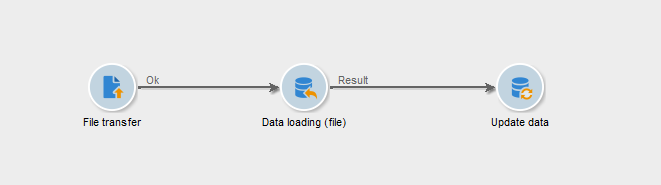
Updating data is often linked to external data imports, which typically consist of File Transfer and Data Loading activities. We can also add an Enrichment activity to reconcile the imported data with any table within the platform and handle unmatched records or rejects.
Updating Recipient Preferences
Assume the selected recipient schema in your instance includes fields for an external customer ID, opt-in status, and preference-update date. The inbound transition contains `externalCustomerId`, `emailOptIn`, and `lastPreferenceUpdate`.
Configure the activity as follows:
- Select Update.
- Select the recipient target dimension.
- Configure `externalCustomerId` to identify the matching recipient record.
- Map `emailOptIn` to the instance’s recipient opt-in field.
- Map `lastPreferenceUpdate` to the instance’s preference-update date field.
Matching recipients are updated. Nonmatching inbound records are not inserted because the operation is Update.
To create records that do not yet exist, use Insert or update only after confirming that the inbound data supplies the values required for a valid new record in the selected target schema.
Removing Identified Records
Use a controlled cleanup dataset only when the records are approved for deletion under the implementation’s data-governance rules.
- Select Delete.
- Select the target dimension containing the records to remove.
- Configure the incoming identifier to match the destination identifier.
- Run and validate the activity on a controlled test population.
- Confirm the matched record set before a production deletion.
The matching rule determines which records the delete operation targets. Review that rule carefully before processing the full dataset.
Common Implementation Problems
The workflow completes but no records change
Review the matching rule first. The source and destination values must identify records that exist in the selected target dimension.
Also verify that Update was not selected for an input containing only new records. Update does not create missing records.
New records are created unexpectedly
Review the selected operation and the matching rule. Insert or update inserts an inbound record when no matching destination record is found.
A formatting difference, incorrect source expression, or incorrect destination field can prevent an existing record from matching.
The expected destination field is unavailable
Verify the selected target dimension and its schema. An inbound field is not automatically available as a destination field; the destination field must exist in the selected target schema.
Also check that the source expression produces a value compatible with the destination field.
The activity fails during an insert
Review the fields mapped for the insert operation against the requirements of the selected target schema. Test with a small, controlled dataset and inspect the input records before processing the full dataset.