

How to Create a Marketing Campaign and Configure Its Flow in Marketing Cloud Next

Marketing Cloud Next organises a marketing initiative in a Campaign record and runs its messages through a flow attached to that record. The campaign groups the audiences, flows, content assets, and results, while the flow controls who enters, when, and what they receive. You create the record from the Campaigns tab, choose a flow template, then configure the segment, schedule, and message before activating. Segments and emails must be published before the flow can use them.
Prepare Your Data and Email Content
Before creating a campaign in Marketing Cloud Next, ensure that the required audience data is configured. Campaign segments use the Unified Individual object, which is created through an identity resolution ruleset. The Trailhead setup unit demonstrates configuring a ruleset with Individual as the primary data model object and using Fuzzy Name and Normalized Email match rules to identify matching customer records. A data graph connects the Unified Individual to the attributes required for flow branching and personalisation, such as First Name or account information. Include only the objects and fields needed for the campaign, then set the data graph as the default under Setup → Customer Engagement → Configure Basic Personalization.
Create a Marketing Campaign
- Open the Marketing application from the App Launcher.
- Navigate to the Campaigns tab.
- Select New.
- Enter a Campaign Name.
- Set the appropriate Campaign Type, such as Email.
- Complete any other required campaign fields.
- Select Save.
For example, use Welcome Email Campaign as the campaign name and Email as the campaign type.


Once saved, the campaign record provides the starting point for configuring its associated flows. A single campaign can contain multiple flows, with each flow operating independently.

Choose a Flow Creation Method
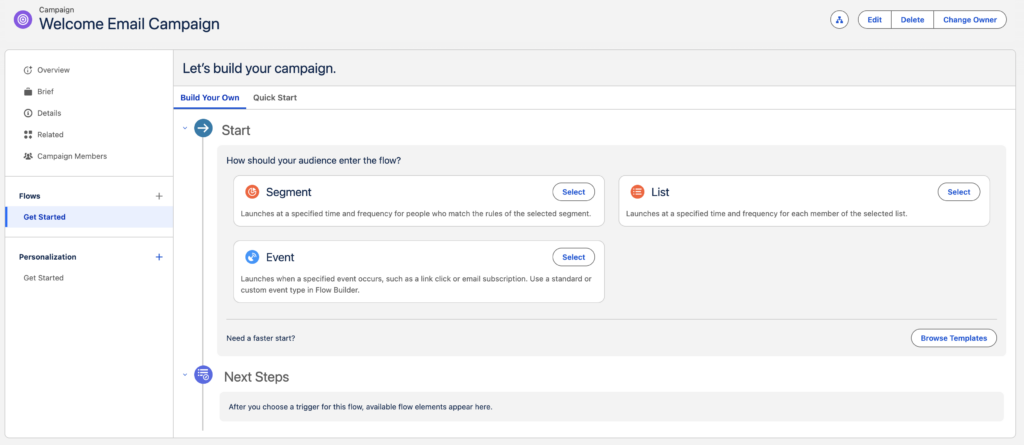
After creating the campaign, the campaign record displays the available flow creation options. Marketing Cloud Next provides two main approaches:
| Option | Description |
|---|---|
| Build Your Own | Allows the flow to be configured using an audience entry source and the required flow elements. |
| Quick Start | Provides preconfigured starting points for common marketing scenarios. |
For a single email campaign, select Quick Start and choose the Single Email option. For a more customised campaign, select Build Your Own and choose the required flow trigger or template.
The selected approach determines the initial flow structure. Additional message and automation elements can be configured after the flow is created.
Configure the Campaign Flow
The flow configuration starts with selecting how individuals enter the flow. After configuring the entry source, add the required message and automation elements under Next Steps.
Select the Audience Entry Source
For a segment-based welcome email campaign:
- Open the Start section.
- Select Segment.
- Select Select.
- Choose an existing published segment or create a new segment.
- Configure the required audience criteria.
- Save and publish the segment.
- Verify that the segment is successfully published before using it in the campaign flow.
A segment defines the individuals who qualify for the campaign based on its configured audience criteria. For example, a welcome campaign can target individuals who meet the required customer or subscription criteria.
Marketing Cloud Next uses Data 360 segmentation to define audiences. The Data 360 segmentation capabilities support audience creation using customer attributes and related data.
Configure the Flow Schedule
The schedule determines when the flow processes its audience and when scheduled communications are delivered.
Configure the schedule as part of the flow setup:
- Open the schedule configuration available for the selected flow.
- Select the required scheduling option.
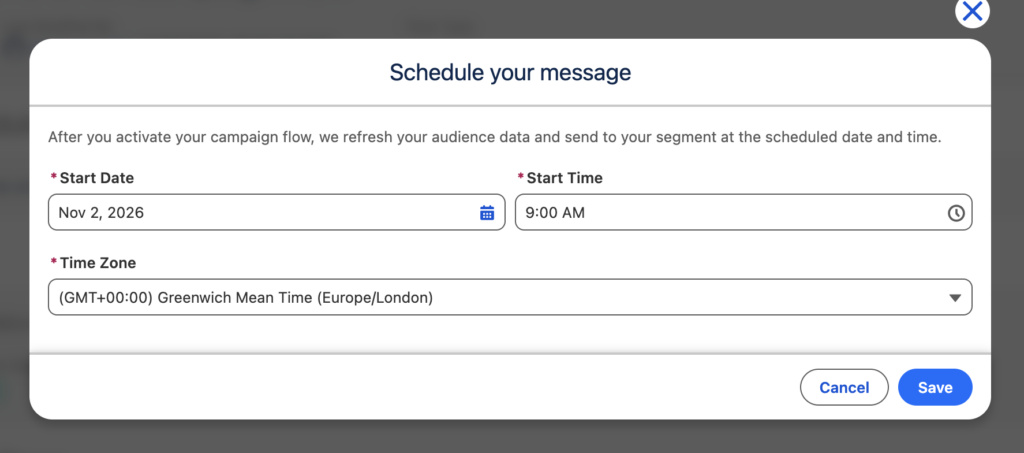
- Enter the start date and time when using a scheduled run.
- Select the appropriate time zone.
- Save the schedule.
For this example, the Welcome Email Campaign is scheduled to start on 2 November 2026 at 9:00 AM UK time.
For segment-based scheduled flows, audience processing and message delivery follow the configured schedule after activation. The schedule should be reviewed before activating the flow.
Add Message Elements
Message elements define the communications delivered to the selected audience.
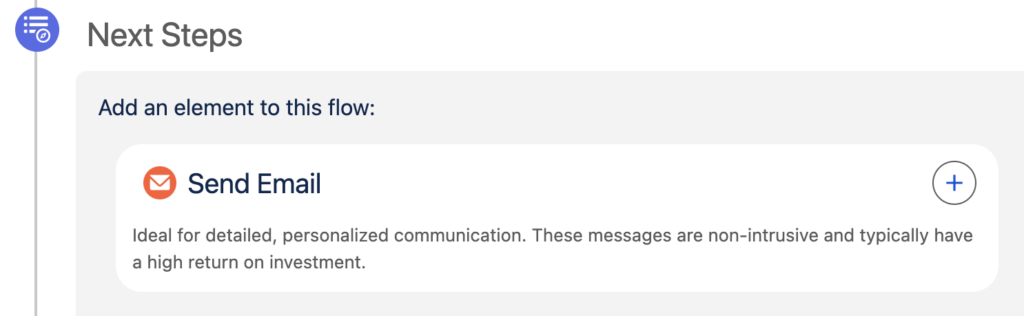
For an email campaign, add a Send Email Message element under Next Steps.
- Open the flow configuration.
- Add the Send Email Message element.
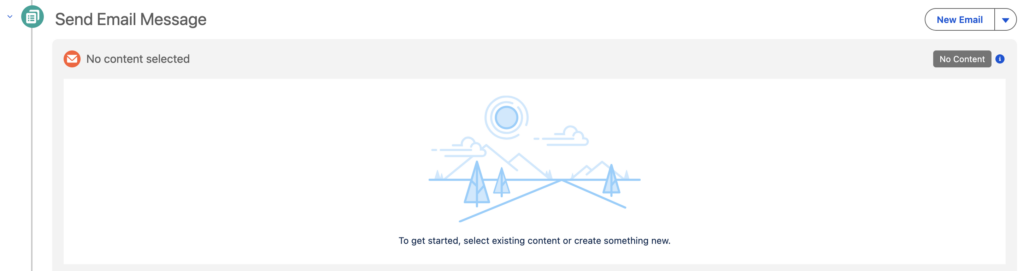
- Select or create the required email content.
- Configure the message properties.
- Save the configuration.
The Send Email Message element delivers the selected email content to individuals entering the flow.
Add Additional Flow Elements
A campaign flow can contain multiple message elements and other supported actions to control the sequence of communications.
| Element | Function |
|---|---|
| Send Email Message | Sends an email to the selected audience. |
| Wait | Delays the next action for a specified period. |
| Send Marketing Cloud Engagement Email | Adds a Marketing Cloud Engagement email to the flow. |
For example, a welcome journey can send an initial welcome email, wait for a defined period and then send a follow-up communication.
Connect the elements in the required execution order and configure each element’s properties before saving the flow.
Create and Configure the Email
Email content is created and managed in the Marketing Cloud Next content editor.
When configuring an email for the campaign:
- Open the email content associated with the Send Email Message element.
- Enter the email subject.
- Configure the preheader.
- Add the required content components.
- Add images, links and personalisation.
- Save the email.
The email editor supports content creation, personalisation, previewing, testing and publishing. The Marketing Cloud Next email editor provides the tools to build and manage campaign email content.
Configure the Sender and Communication Subscription
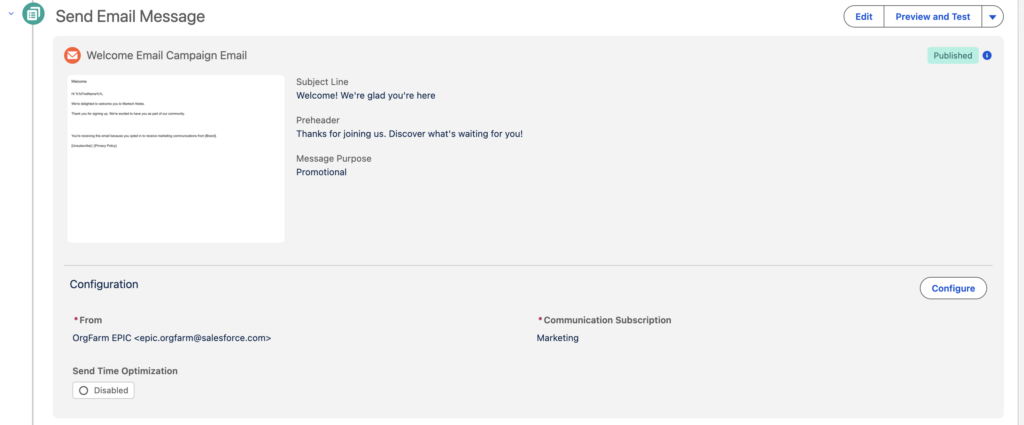
The email message requires sender details and a communication subscription before activation.
Configure the following settings in the email message:
- From Name: The sender name displayed to recipients.
- From Address: The authorised email address used to send the message.
- Communication Subscription: The subscription associated with the type of communication.
Select the appropriate sender details and communication subscription, then save the configuration.
For promotional communications, ensure the recipient’s consent requirements are met and that the email contains the required physical mailing address and unsubscribe information.
Preview and Test the Email
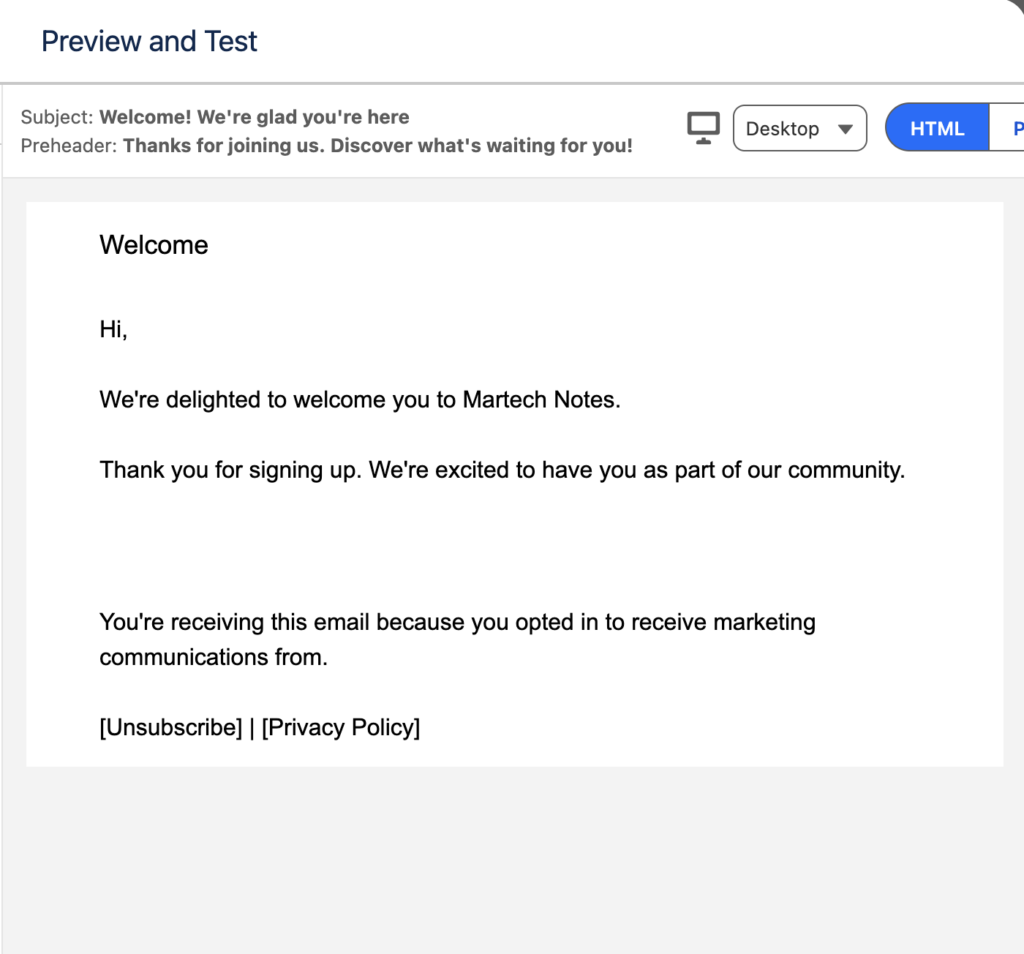
Preview the email before publishing it to verify the rendered content and personalisation.
- Open the email editor.
- Select Preview.
- Select the published audience segment.
- Choose a sample recipient.
- Review the rendered email.
Check that personalisation fields, images, links, subject line and preheader display correctly.
To send a test email, open the Test tab, enter the test recipient email addresses and select Send Test. Check the received email in the relevant email client to verify its rendering and functionality.
Test sends count towards message credits.
Publish the Email and Activate the Flow
Publishing the email and activating the campaign flow are separate operations.
First, publish the email content:
- Open the email editor.
- Select Publish.
- Review the publishing confirmation.
- Select Next.
- Select Publish Now.
After publishing the email, review the campaign configuration before activating the flow.
Check that:
- The intended audience is selected.
- The segment has been published successfully.
- The schedule and time zone are correct.
- All message elements are configured.
- Sender details and communication subscription are set.
- The email content is published.
- The flow has no outstanding configuration errors.
Once the configuration is complete, save the flow and select the activation option.
For scheduled segment flows, activation starts the flow process, while message delivery follows the configured schedule. Publishing the email does not automatically activate the associated flow.
Monitor Campaign Performance
After activation, review the campaign record and its associated flows to monitor the marketing activity.
Campaign performance reporting provides visibility into the results of related marketing activities. Use the available campaign metrics and Analytics capabilities to review engagement and assess campaign performance.