




How to Integrate Mautic with WordPress
Integrating Mautic with WordPress means connecting three pieces – API authentication, site tracking, and form capture – so WordPress can publish pages while Mautic records submissions and visits. In practice, that matters because a form can appear on a page long before the integration is actually working, and most failures happen in the handoff between the two systems.
What a working Mautic and WordPress integration should actually do
WordPress should handle content, navigation, and page editing, while Mautic should handle the visitor data you want to capture from that site.
That is why it helps to think about the integration in two layers:
- The connection layer – API access, authentication, and allowed browser requests
- The content layer – forms, tracking, and where those Mautic elements appear inside WordPress
Prepare Mautic before touching WordPress
Enable API access and match the connection settings
The first dependency is enabling the Mautic API and preparing the WordPress connection settings. WordPress cannot authenticate until API access is turned on, and if the two systems are running on different origins, Mautic also has to allow the site-side requests WordPress will send from the browser. A common issue is installing the plugin in WordPress first, then spending time debugging the front end when the real problem is that Mautic was never configured to accept the connection.
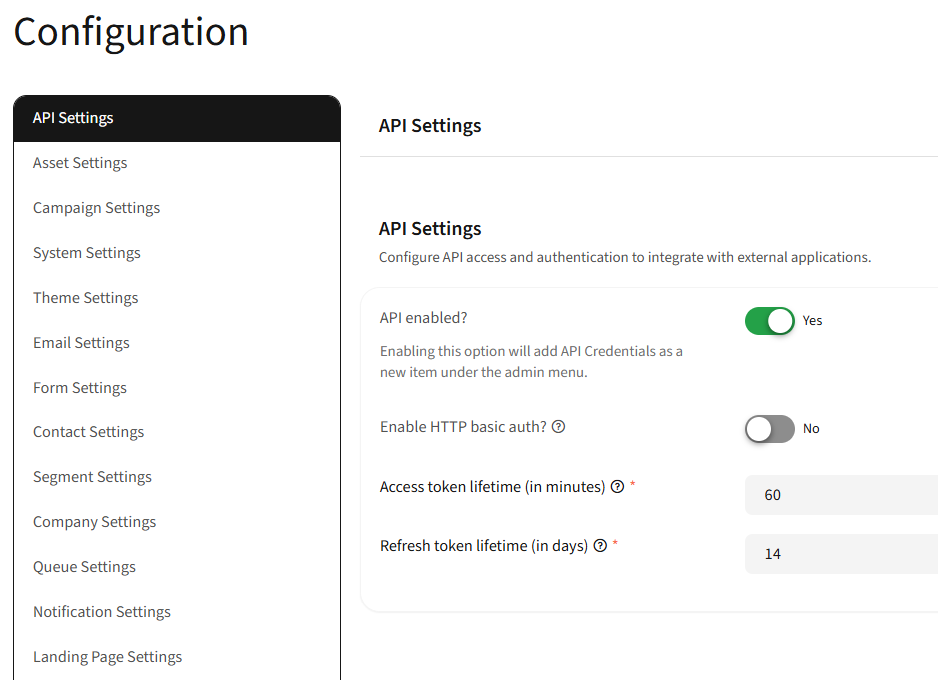
In practice, this is the cleanest order of operations:
- Turn on API access in Mautic.
- Create or prepare the authentication details you want WordPress to use.
- Make sure the WordPress site URL is allowed wherever Mautic expects browser-based requests from another origin.
- Only then move to the WordPress side.
That order matters because it separates connection problems from page-rendering problems. If the Mautic side is not ready, everything that follows in WordPress becomes harder to diagnose.
Use the exact public URL Mautic expects
A common issue is entering a Mautic URL in WordPress that works internally but is not the same public URL the browser should use. Even a clean plugin install will fail if WordPress points to the wrong address.
What typically happens is one of these:
- a staging or internal hostname is entered instead of the public one
- WordPress and Mautic disagree about the base URL
- the connection looks close to working, but authentication never fully completes
When that happens, treat it as a connectivity problem first, not a WordPress editor problem.
Install the WordPress side of the integration carefully
Use the plugin that is built for Mautic tracking and embeds
On the WordPress side, use the connector designed to add Mautic tracking and embedded Mautic content inside WordPress. That keeps the Mautic URL, connection details, and site-side behavior in one place instead of scattering code through theme files or manually pasting snippets into multiple templates.
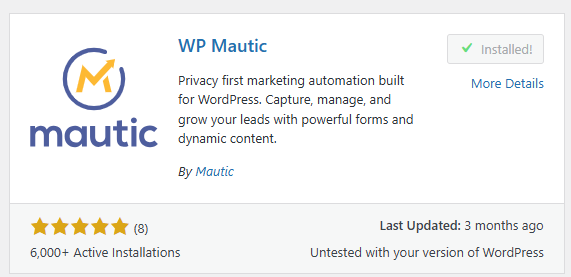
In practice, that is easier to maintain for two reasons. First, content editors can keep working in WordPress without touching Mautic configuration every time a page changes. Second, when something breaks, you have a clear place to check the integration itself before blaming the theme, page builder, or the form markup.
Connect first, publish second
One limitation of many WordPress integrations is that visual output can hide broken connectivity. A form container may render on the page even though WordPress is not fully connected to Mautic.
The safer workflow is:
- install the plugin
- enter the Mautic URL and credentials
- verify the connection behavior
- only then start placing forms or tracking-dependent elements on production pages
What typically happens when teams skip that order is they debug shortcode placement, CSS, or caching while the root cause is still an incomplete connection between WordPress and Mautic.
Using Mautic Forms Inside WordPress
One of the main reasons teams install the official WordPress connector for Mautic is simplifying how Mautic forms are embedded across the website.
Without the plugin, forms are usually added manually using JavaScript embed codes copied directly from Mautic. That works perfectly fine for technical users, but it can become harder to maintain when multiple editors or landing pages are involved.
The WordPress plugin allows Mautic forms or focus items to be inserted using shortcodes directly inside the editor.
Example:
[mautic type="form" id="3"]
[mautic type="focus" id="3"]
That keeps editors inside WordPress instead of repeatedly switching between systems to copy embed scripts.
In practice, the plugin is less about adding new functionality and more about creating a cleaner maintenance workflow. It centralizes the Mautic URL, tracking configuration, and form embedding behavior in one place instead of spreading implementation details across templates, widgets, and custom HTML blocks.
Native WordPress Forms vs Mautic Forms
Not every WordPress and Mautic setup actually uses Mautic forms on the frontend.
A very common production pattern is keeping Mautic as the backend marketing automation platform while using WordPress-native plugins for:
- popups
- subscription forms
- lead magnets
- WooCommerce capture flows
- visual form builders
The reason is simple. WordPress plugins often provide more advanced frontend controls, popup logic, styling flexibility, and editor-friendly workflows than Mautic forms alone.
In my current setup, I use MailPoet for subscription forms and popup handling while synchronizing confirmed subscribers into Mautic only after double opt-in approval.
That distinction matters because it keeps unconfirmed contacts out of the Mautic database. Instead of creating contacts immediately after form submission, only verified subscribers are synchronized into Mautic after the email confirmation step is completed.
In practice, this creates a cleaner contact database and reduces:
- spam submissions
- fake signups
- abandoned opt-ins
- low quality lead records
This hybrid model also gives WordPress full control over the frontend experience while Mautic remains responsible for:
- segmentation
- campaigns
- lead scoring
- automations
- contact journeys
- centralized marketing data
Share With Others
 Platinum