




5 Reasons Why Salesforce Marketing Automation can end in error
Marketing automation workflows are designed to run silently in the background. Once configured, they are supposed to move data, trigger messages, and orchestrate campaigns without constant supervision.
At least in theory.
In reality, every marketing automation consultant eventually experiences the moment when an automation suddenly fails, a workflow stops mid-execution, or a scheduled job throws an unexpected error.
Here are the most common errors that you can experience with working with automation studio.
Activity timeout error in automation studio
One of the most common automation failures you will eventually encounter is a timeout error. This usually happens when a SQL query or automation step takes too long to execute and the platform simply stops the process.
In Salesforce Marketing Cloud, SQL Query Activities typically have a 30 minute execution limit. If your query processes a very large dataset, performs heavy joins, or uses inefficient filtering, it may exceed this limit and fail.
Typical causes include:
- Querying extremely large Data Extensions
- Missing indexes or filtering conditions
- Using multiple complex joins
- Performing expensive string functions on large datasets
- Processing historical data in a single query
The best solution is usually to break the query into smaller steps. Splitting large loads across multiple queries or staging Data Extensions can significantly reduce execution time.
If you work with very large datasets, one useful technique is splitting loads based on partitions or object keys.
Another possible solution is to ask Salesforce support to increase the activity timeout for your business unit.
Field length mismatch (data truncation)
Another common failure happens when the value returned by your query is longer than the size of the target field in the Data Extension.
In this case the automation will fail with an error similar to:
Error: Query failed during execution. Error: String or binary data would be truncated in table 'Target_DataExtension', column 'FirstName'.This means that the query attempted to insert a value that does not fit into the destination field.
A typical scenario looks like this:
- Source field contains a value longer than expected
- Target Data Extension has a smaller field size defined
- During insertion the platform refuses to truncate the value automatically
Example situation:
- Source value:
Asociaciones Y Colectivos De Mujeres De La Comarca - Target field length:
50 - Result: query activity fails
Fortunately this error message usually tells you exactly which column caused the issue, making it easier to troubleshoot.
Common fixes include:
- Increasing the field length in the target Data Extension
- Truncating the value inside the SQL query using
LEFT() - Cleaning the source data before loading it
Example workaround in SQL:
SELECT
    SubscriberKey,
    LEFT(FirstName, 50) AS FirstName
FROM Source_DE
Violation of PRIMARY KEY constraint. Cannot insert duplicate key.
Another classic automation failure is the primary key violation error.
This happens when a query attempts to insert duplicate records into a Data Extension where a field is marked as a Primary Key.
Example scenario:
Your target Data Extension has:
SubscriberKey (Primary Key)If your SQL query returns multiple rows with the same SubscriberKey, the insert will fail because primary keys must remain unique.
Typical causes include:
- Missing
DISTINCTin the query - Incorrect joins producing duplicate rows
- Aggregations returning multiple rows per key
- Using
SELECT *from a dataset that already contains duplicates
Common ways to solve this include:
- Using
SELECT DISTINCT - Aggregating records with
GROUP BY - Using
ROW_NUMBER()to keep only the latest record - Deduplicating data in a staging Data Extension before loading the final one
SELECT
    SubscriberKey,
    EmailAddress
FROM (
    SELECT
        SubscriberKey,
        EmailAddress,
        ROW_NUMBER() OVER (PARTITION BY SubscriberKey ORDER BY LastModifiedDate DESC) AS rn
    FROM Master_DE
) x
WHERE rn = 1
Primary key violations are usually easy to identify because the error message explicitly mentions the key constraint.
Automation failed due to system error
Another frustrating error message you may encounter is:
“Automation failed due to system error.”
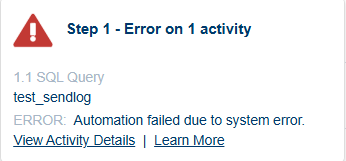
Unfortunately this message is extremely vague and does not tell you much about the real problem. There are several scenarios where this error can appear.
Temporary platform issues
Sometimes the failure simply happens on the Salesforce side. Platform resources might be temporarily unavailable or an internal process might fail.
When this happens there is usually nothing you can fix. The best solution is simply to rerun the automation, and it will often succeed on the second attempt.
Query activities not refreshed after schema changes
Another very common cause is when the structure of a Data Extension changes but the Query Activity was not resaved afterwards.
For example:
- A field name in the target Data Extension was changed
- A field was removed or renamed
- The target Data Extension itself was replaced
Even though the query still appears correct, the underlying schema reference is outdated. In this case you simply need to open the Query Activity, save it again, and rerun the automation.
Cannot insert a NULL value into a non-nullable column
Another error you may encounter in Automation Studio SQL Query Activities is:
Cannot insert a NULL value into a non-nullable column.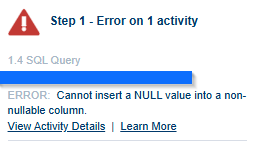
This error occurs when the query attempts to insert a NULL value into a field that does not allow NULL values in the target Data Extension.
In Salesforce Marketing Cloud, fields can be defined as required (non-nullable). When a query returns NULL for such a field, the insert operation fails and the activity stops.
Typical scenarios include:
- The query does not return a value for a required field
- A field used in the SELECT statement contains NULL values in the source Data Extension
- A join removes records that normally populate the required column
- A transformation or calculation results in NULL
For example, if the target Data Extension requires SubscriberKey but the query returns NULL for some rows, the query activity will fail during insertion.
How to mitigate
There are several ways to prevent this error.
1. Filter out NULL values
The simplest approach is to exclude records where the required field is NULL.
SELECT
    SubscriberKey,
    EmailAddress
FROM Source_DE
WHERE SubscriberKey IS NOT NULL
2. Provide a fallback value
You can replace NULL values using functions such as ISNULL().
SELECT
    ISNULL(SubscriberKey, 'UNKNOWN') AS SubscriberKey,
    EmailAddress
FROM Source_DE
3. Check joins carefully
Sometimes joins unintentionally create NULL values. For example, a LEFT JOIN may return NULL values when there is no matching record.
Review your join logic to ensure required fields are always populated.
4. Review Data Extension settings
If the field does not actually need to be required, you may also consider modifying the target Data Extension and allowing NULL values.
In practice, this error is usually easy to troubleshoot because it clearly indicates that a required field in the target Data Extension is receiving NULL values from the query.
Share With Others
 Platinum


