




How to Schedule Dashboards and Reports in Salesforce
Salesforce lets you build surprisingly powerful reports and dashboards natively, no external BI tool required. But there’s a catch most admins discover the hard way: the native schedule refresh is tucked behind the Subscribe button.
Subscribing to a Dashboard
Open the dashboard you want to schedule. In the top-right corner you’ll see the Subscribe button. It sits right there in the toolbar, though it’s easy to overlook if you’re hunting for something labeled “Schedule.”

Click Subscribe and a modal window opens. From here you can configure:
- Frequency – daily, weekly, or monthly. These are the only native options Salesforce offers.
- Day – which day of the week (for weekly) or day of the month (for monthly) the refresh should fire.
- Time – the preferred time for the refresh to run. Salesforce picks from available time slots, so you may not get the exact minute you want, but you can choose the general window.
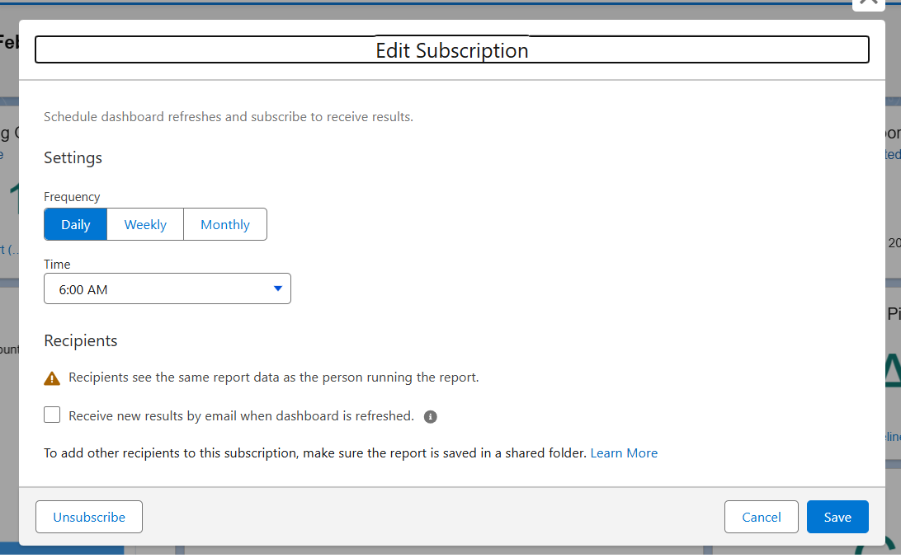
By default, the subscription will also email you a snapshot of the dashboard at the scheduled time. If you only want the data to refresh in the background without the email, simply uncheck the email notification option before saving. This way the dashboard stays current for anyone who opens it, without cluttering your inbox.
Subscribing to a Report
Reports work the same way, but the button is in a slightly different spot. Open the report and look at the drop-down menu in the top-right corner (the small arrow or overflow menu next to the main action buttons). Inside that menu you’ll find the Subscribe option.
Click it and you’ll get the same modal window as with dashboards. Set your frequency, day, and time. The setup is identical.
One detail that trips people up on reports: if you don’t want the email notifications, you need to click Edit Recipients inside the subscribe modal and remove yourself from the recipient list. Unlike dashboards where you can simply uncheck a box, reports require you to explicitly remove recipients to stop the emails while keeping the scheduled refresh active.
Pushing Past Daily Refreshes
If daily isn’t enough, you have a couple of paths forward.
The first is the Reports and Dashboards REST API. Salesforce exposes a PUT endpoint that can trigger a dashboard refresh programmatically. You can wire this up using an Autolaunched Flow combined with an HTTP Callout action, and then use a scheduling tool like the Schedul-o-matic 9000 app to fire that flow at whatever interval you need, every hour, every 15 minutes, or even more frequently. This approach stays within the Salesforce ecosystem but requires some configuration: a Connected App, Named Credentials, and a flow that calls the API endpoint.
The second option is third-party tools from the AppExchange. Several apps and browser extensions exist specifically to work around the native refresh limitations, offering custom intervals and auto-refresh capabilities without the API setup.
Both paths are more involved than clicking Subscribe, but they’re the reality if your business needs fresher data than a once-a-day refresh can provide.
Share With Others
 Platinum