





Salesforce Field Type Change Error: When Flows Block the Update
In the age of AI, one would think that changing a field type would be as easy as selecting the required field type, hitting Enter, and letting the beloved AI resolve all the crappy dependencies for you. But that is still not something we get to experience in Salesforce.
For seasoned Salesforce consultants, this might be something they come across every now and then, and perhaps they already know what to do. Salesforce gives us only one hint: where the field is used and what is preventing the update. The problem is that the hint does not always tell you exactly what needs to be changed first.
In my case, the field type change was blocked by a flow.

Referenced Formulas Do Not Block the Field Type Change
I learned the hard way that you do not always need to change every referencing formula before changing the field type.
What mattered in my case was updating the flow activities where the field was actually used. Once those references were handled, Salesforce allowed me to continue with the field type change.
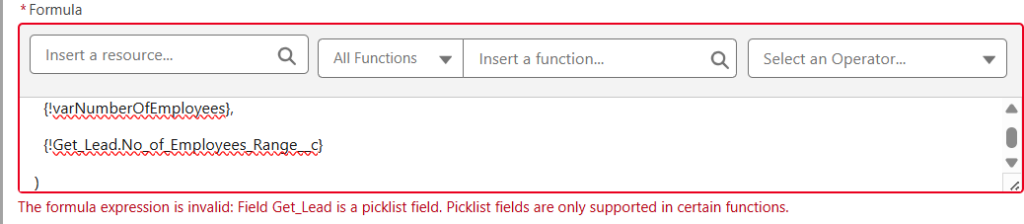
The formulas can still become invalid afterward, but that is a separate problem. You can fix them by casting the new value properly, for example by using the TEXT() function when working with a picklist field.
The good thing is that the invalid formulas did not block the field type change itself. Of course, they will still prevent you from activating the flow until they are fixed.
Why the Same Flow Appears Multiple Times in the Error?
Another confusing part is when Salesforce mentions the same flow multiple times in the error message.
If the same flow appears more than once, it usually means that some older versions of the flow still reference the field. This is where things get annoying, because editing only the active version may not be enough.
In that case, the cleanest workaround is often to copy the entire flow into a new one, remove or adjust the problematic field references there, and then delete the old flow together with its previous versions.
It is not beautiful, but it gets you out of the dependency trap.
Plan Field Types Before Building the Flow
The best approach to handling these issues is to avoid them in the first place (if that is possible).
This happened to me because I approached my double opt-in demo a bit like an artist. I added the fields I thought I needed, built more and more layers on top of them, and only later realized that I wanted to change something.
That works better with painting. In Salesforce, not so much.
Once a field is used in flows, formulas, decisions, assignments, and other automation, changing its type can create a lot of extra work. To prevent this, it is better to define the object fields and their data types before building the automation around them.
You should not discover the real use case later and then try to reshape all variable types around it. Field types, picklists, text fields, numbers, and formulas should be part of the design work before the flow becomes too deeply connected to everything else.
Share With Others
 Platinum