


How to Configure the Change Data Source Activity in Adobe Campaign Classic

A workflow uses a working table to pass the records it is processing from one activity to the next. By default, Adobe Campaign creates this table in the same database as the data being queried. For example, if the workflow queries Recipients in Campaign Cloud, its working table is normally created there too.
The Change data source activity lets you choose a different supported database for the workflow’s working table, such as Campaign Local or an external database connected through Federated Data Access (FDA). It changes where the workflow handles its working data; it does not change the original recipient or business records. If later steps need to run in Campaign Cloud, switch the working table back to Cloud first.
To use an external database through FDA, FDA must be enabled and the database connection configured.
Prerequisites to use Change Data Source Activity
To use this activity with data stored in an external database, your Adobe Campaign instance must have the optional Access to external data (Federated Data Access) package enabled. Federated Data Access (FDA) lets Campaign query and process data in compatible external databases without changing Campaign’s data structure.
Package availability depends on your license and hosting setup. On-premise administrators can install it from Tools > Advanced > Import package > Install a standard package. Hosted or hybrid customers should contact Adobe to have it deployed. You’ll also need to configure an FDA external account for the database and ensure the required permissions are in place.

What the Change Data Source Activity Does
Use Change data source when the workflow needs to continue from an incoming transition with a different data source selected for the next processing stage.
It is a workflow control activity. Do not use it as a substitute for an activity that writes changes to Campaign data. For record updates, use the separate Update data activity.
Configuration Steps
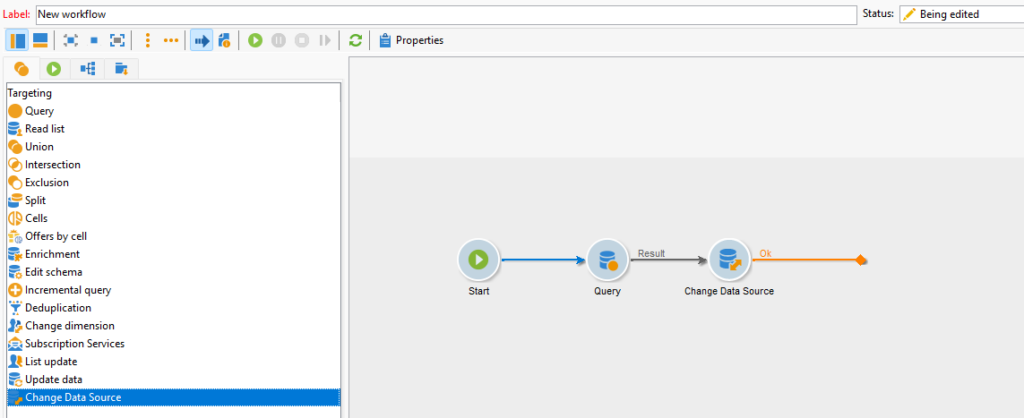
- Add Change data source after the workflow activity whose outgoing transition supplies the data to be processed next.
- Open the activity configuration.
- Select the required data source using the options available in the activity.
- Save the configuration.
- Connect the outgoing transition to the next workflow activity.
- Run and review the workflow after the change to confirm that the downstream processing stage works with the selected source.
The activity must sit on the executed workflow path. Configuring an activity that no transition reaches does not alter processing elsewhere in the workflow.
Illustrative Workflow Pattern
The following pattern shows where the activity belongs in a workflow:
Upstream targeting or data-processing activity
 ->
Change data source
 ->
Downstream data-processing activity
Place the source change immediately before the stage that needs to run with the selected source. Keep unrelated processing on the existing path rather than inserting the activity before it is needed.
Validate the Downstream Workflow Step
After selecting a source, test the next activity in the workflow path. Check the workflow log and confirm that the transition completes before adding further processing.
If the next activity fails after the source change, review the source selection, the workflow path, and the requirements of the downstream activity. Move the Change data source activity so that it precedes only the processing stage that requires the selected source.
When the Activity Appears to Have No Effect
Confirm that the downstream activity is connected to the Change data source activity’s outgoing transition and that the workflow executes that path. A source selection only applies where the workflow passes through the configured activity.
Do not expect Change data source to update recipient, profile, or other business records. Add an appropriate data-update activity when the workflow must persist changes to data.