


Marketing Cloud Next Consent Segmentation Gap in Data Cloud

When building segments in any visual editor, you might think that if you can connect things with a simple drag and drop, they should just work, right? In this case, however, the very first segment I tried to create sent me on a surprisingly long journey down the Marketing Cloud Next rabbit hole.
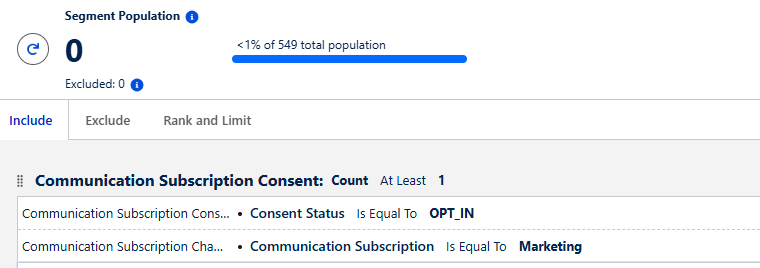
I wanted to create what should have been a very simple segment: find Unified Individuals who have a particular communication consent.
The relationship is visible in the segment builder. I can navigate from the Individual to the related contact point consent, add the consent criteria, and save the segment.
Everything looks correct.
The result?
Zero records. Nada.
This is a product gap. At least that what salesforce support said. The data exists, the relationship is visible in the segment builder, but the segment does not resolve the Individuals correctly.
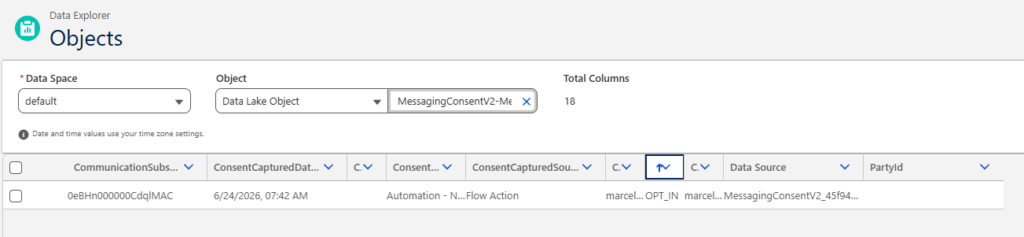
The issue: Missing partyId in Subscription Consent data feed
The issue is that the consent configuration you see in the UI is not backed by the same relationship in the underlying data. The background data streams do not populate the Party field on Communication Subscription Consent, so the standard relationship to Individual ID has nothing to join on. As a result, the consent may exist and be visible in the UI, while the corresponding relationship in Data Cloud remains empty.
The workaround: Calculated Insight
The workaround is to create a Calculated Insight that resolves the relationship manually and then use that Calculated Insight in the segment.
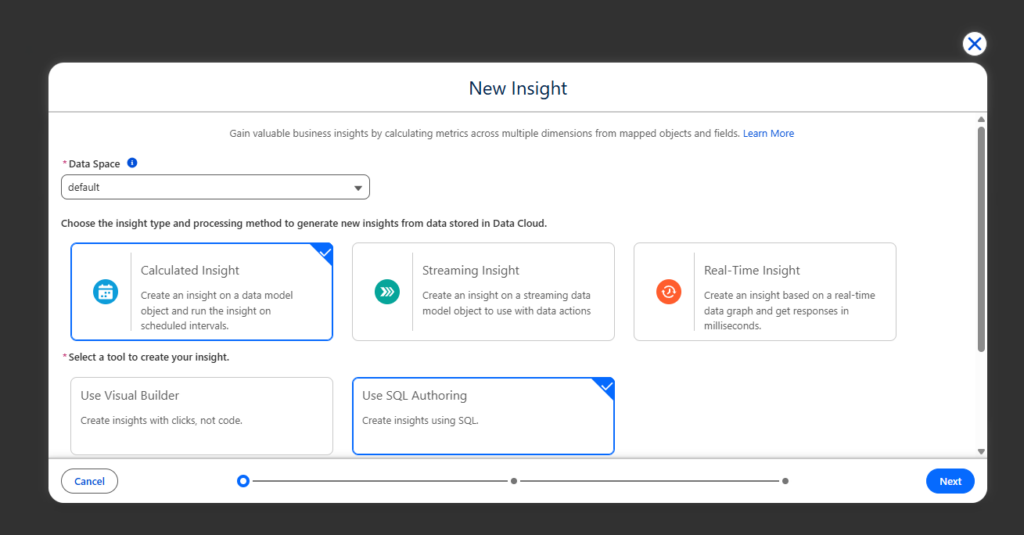
SQL to get Subscription Consent for unified individual
For the SQL part of our Calculated insight we need to resolve a following relationship:
Unified Individual
→ Unified Contact Point Email
→ Communication Subscription Consent
SELECT
    UnifiedIndividual__dlm.ssot__Id__c AS id__c,
    COUNT(UnifiedIndividual__dlm.ssot__Id__c) AS index__c,
    ssot__CommunicationSubscriptionConsent__dlm.ssot__ConsentStatus__c AS ConsentStatus__c
FROM
    UnifiedIndividual__dlm
JOIN
    UnifiedContactPointEmail__dlm
    ON UnifiedIndividual__dlm.ssot__Id__c =
       UnifiedContactPointEmail__dlm.ssot__PartyId__c
JOIN
    ssot__CommunicationSubscriptionConsent__dlm
    ON ssot__CommunicationSubscriptionConsent__dlm.ssot__ContactPointValueText__c =
       UnifiedContactPointEmail__dlm.ssot__EmailAddress__c
GROUP BY
    ConsentStatus__c,
    id__c
But wait! Is that really it? What if we have multiple channels and subscriptions in play? In many cases, you do not want consent for just any subscription, but for a specific one. In my case, I needed to restrict the result to the following Communication Subscription:
Name = 'Marketing'So we need to continue with our JOIN crusade:
Unified Individual
→ Unified Contact Point Email
→ Communication Subscription Consent → Communication Subscription Channel Type
→ Communication Subscription
SELECT
    ui.ssot__Id__c AS id__c,
    COUNT(ui.ssot__Id__c) AS index__c,
    consent.ssot__ConsentStatus__c AS ConsentStatus__c

FROM UnifiedIndividual__dlm ui

JOIN UnifiedContactPointEmail__dlm email
    ON ui.ssot__Id__c = email.ssot__PartyId__c

JOIN ssot__CommunicationSubscriptionConsent__dlm consent
    ON consent.ssot__ContactPointValueText__c =
       email.ssot__EmailAddress__c

JOIN ssot__CommunicationSubscriptionChannelType__dlm channelType
    ON consent.ssot__CommunicationSubscriptionChannelTypeId__c =
       channelType.ssot__Id__c

JOIN ssot__CommunicationSubscription__dlm subscription
    ON channelType.ssot__CommunicationSubscriptionId__c =
       subscription.ssot__Id__c

WHERE
    subscription.ssot__Name__c = 'Marketing'

GROUP BY
    ui.ssot__Id__c,
consent.ssot__ConsentStatus__cNOTE: Make sure to check how your tables are called as it changes the SQL

After SQL is added, validated and calculated insight saved and put on schedule. We can use it in our segment.
And there you have it. No code, just SQL, Calculated Insights, and a small tour through the Data Cloud data model.