




5 Salesforce Marketing Cloud Query Studio Tips
Salesforce Marketing Cloud Query Studio is one of the most useful tools when working with data extensions. It allows you to quickly test SQL queries, validate logic, and preview results without the need to run a full automation. For many developers and consultants, it becomes a daily go-to tool.
It has several limitations and hidden behaviors that can lead to misleading results if you are not aware of them. Some queries that seem correct at first glance may behave differently under the hood.
In this article, I will share 5 practical tips based on real-world usage that will help you avoid common pitfalls, debug faster, and get more reliable results when working with Query Studio.
ORDER BY + TOP Does Not Return What You Expect
When working in Query Studio, you might notice that using ORDER BY requires adding a TOP clause. This behavior is not unique to Query Studio – it also applies to Query Activities in Automation Studio, since Query Studio actually creates and runs Query Activities in the background. While this requirement is already a limitation, the real issue is more subtle and can lead to incorrect results.
Let’s take a query where we simply want to get last 10 records order by date added
SELECT TOP 10
    SubscriberKey
FROM TXN_DE
WHERE Country = 'de'
ORDER BY CreatedAt DESC
This query will return 10 records with SubscriberKeys – nothing unusual at first glance. It does exactly what you would expect.
But when you take a closer look, you might notice something strange… the dates are from 2022.
Wait a minute – this Data Extension definitely contains records from 2026. So how is this supposed to be the top 10 ordered by date?
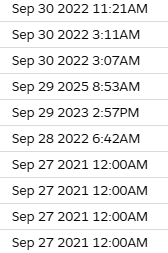
Instead of returning the latest records as expected, Query Studio can behave unpredictably. For example, when you run a query like SELECT TOP 10 ... ORDER BY CreatedAt DESC, it may first select a random subset of records and only then apply sorting. The result looks sorted, but it is not actually the latest 10 records from your dataset.
This is not standard SQL behavior. In proper SQL execution, the data is first sorted and only then limited by the TOP clause. You can confirm this by running the same query in Automation Studio, where it works correctly and returns the expected results.
When looking closer at the generated query, there is a subtle detail that can also contribute to the issue.
SELECT TOP 10
    RTRIM(LEFT(COALESCE(CAST(SubscriberKey AS CHAR(255)), '<null>'), 255)) AS SubscriberKey,
RTRIM(LEFT(COALESCE(CAST(CreatedAt AS CHAR(255)), '<null>'), 255)) AS CreatedAt ,
FROM TXN_DE
WHERE Country = 'de'
ORDER BY CreatedAt DESC
Query Studio rewrites selected fields by casting them to strings and assigning aliases, often using the same name as the original column. In cases where a datetime field like CreatedAt is cast and aliased back to CreatedAt, the ORDER BY clause may end up referencing this string version instead of the original datetime column. Since string sorting is lexical rather than chronological, this can lead to incorrect ordering, where older records appear above newer ones. Renaming the alias or explicitly referencing the original table column in the ORDER BY clause ensures the correct sorting behavior.
How to fix it
There are two practical ways to work around this limitation:
- Rename the casted column
Instead of aliasing the casted field with the same name, use a different alias (for example,CreatedAt_str). This ensures that theORDER BYclause still references the original datetime column. - If you feel adventurous use
ROW_NUMBER()withPARTITION BY
This approach ensures that ordering is applied before filtering, making the results reliable even in Query Studio.
SELECT
    SubscriberKey,
    CreatedAt
FROM (
    SELECT
        SubscriberKey,
        CreatedAt,
        ROW_NUMBER() OVER (ORDER BY CreatedAt DESC) AS rn
    FROM TXN_DE
    WHERE Country = 'de'
) t
WHERE rn <= 10
Error saving the Query field.Incorrect syntax near ‘(‘
Another related issue appears when working with column names wrapped in brackets, such as [SubscriberKey], especially when the column is used as the first field in the SELECT statement. While this is perfectly valid SQL, Query Studio can throw a syntax error like “Incorrect syntax near ‘(‘”. This is closely related to the previous issue, where Query Studio rewrites columns using functions like CAST, COALESCE, and RTRIM. During this transformation, the first column is parsed differently, and bracketed column names can break the generated SQL.
In practice, this means that even though the query is valid, Query Studio may fail to execute it due to its internal rewriting logic. As with the previous tip, a simple workaround is to avoid using bracketed column names in the first position, alias them immediately, or reorder the columns.
Save Results from Query Studio into a “Proper” Data Extension
When working in Query Studio, results are often stored in temporary Data Extensions where retention is set to 24 hours. In some cases, you may want to reuse that Data Extension elsewhere, for example when creating a suppression list, without the need to go through the full process of creating a Data Extension, setting up a Query Activity, and running an automation.
You can do all of this directly in Query Studio. Simply save the results into a properly named Data Extension and adjust the retention settings if needed.
You can find data extensions under the Query Studio Results Folder
Save Your Query as a Proper Query Activity
Sometimes it is useful to save your Query Studio-tested query directly as a Query Activity. Instead of rewriting everything again in Automation Studio, you can simply click “Save As” and fill in the required details.

This will store your query under a proper Query Definition without any temporary data retention settings. It allows you to reuse, schedule, and manage the query more reliably, while saving time during development.
5th tip.. on the way… or it can be you who can share query studio tips with us. Let us know in the comments or write me.
Share With Others
 Platinum